Home › Guides › Won't boot after cloning
Your PC won't boot after cloning: a diagnostic checklist
Boot order, EFI partitions, BitLocker, MBR vs GPT and the other usual suspects, in the order worth checking them.
The clone finished, you swapped the drives, and the machine shows a black screen, a blinking cursor, or a message about no bootable device. This is common and almost always fixable. Work through the list in order — the early items are far more likely than the later ones, and they cost nothing to check.
1. Is the SSD first in the boot order?
By far the most common cause. Enter firmware setup during startup (Del, F2, F10 or F12 depending on the manufacturer) and look at the boot priority list. The new drive needs to be above everything else. On UEFI systems, look specifically for a “Windows Boot Manager” entry pointing at the new drive rather than a generic disk entry.
2. Are both drives still connected?
If the old drive is still in the machine, disconnect it and try again. Two disks carrying the same boot configuration and the same disk signature confuse the firmware, and Windows may load its boot files from one drive and expect its system files on the other. Testing with only the new drive attached removes the ambiguity entirely.
3. Was the source drive BitLocker-encrypted?
An encrypted source produces a clone that the new machine configuration cannot unlock, because the TPM measurement no longer matches. You will either be asked for a recovery key or see a boot failure. If you have the recovery key, enter it. If not, go back to the original drive, suspend or decrypt BitLocker, and clone again. Many Windows 11 machines have device encryption enabled by default without the owner ever choosing it.
4. MBR, GPT and the firmware mode
A GPT disk needs UEFI boot; an MBR disk needs legacy or CSM boot. If your source was MBR and the firmware is now in pure UEFI mode — or the reverse — the clone will not start.
- Check the partition style in Disk Management: right-click the disk, Properties, Volumes tab.
- Either match the firmware setting to the disk, or convert the disk. Windows includes
mbr2gpt.exefor converting MBR to GPT in place; it is best run on the original drive before cloning. - Some firmware has a “CSM” or “Legacy support” toggle that must be on for MBR disks and off for pure UEFI.
5. Did the small hidden partitions come across?
A bootable Windows drive is not one partition. A UEFI system also needs the EFI System Partition (around 100 MB, FAT32) and usually a Microsoft Reserved partition; MBR systems need a System Reserved partition holding the boot files. If you cloned only the C: partition rather than the whole disk, these were left behind and the drive cannot boot.
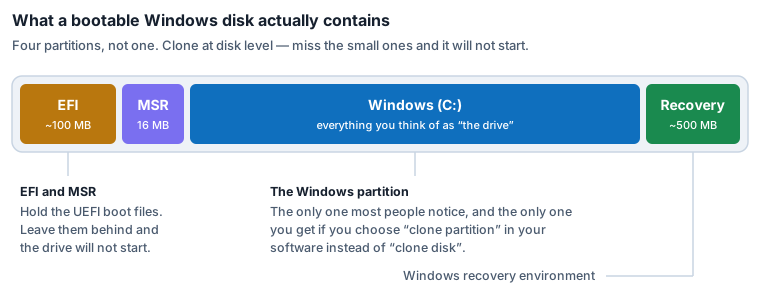
The fix is to redo the clone at disk level rather than partition level. Alternatively, rebuild the boot files as described below.
6. Rebuild the Windows boot configuration
If the partitions are all present but Windows still will not start, the boot record probably points at the old drive. Boot from Windows installation media or a recovery USB, choose Repair your computer → Troubleshoot → Command Prompt, and run:
bootrec /fixmbr
bootrec /fixboot
bootrec /scanos
bootrec /rebuildbcd
If bootrec /fixboot returns “Access is denied” on a UEFI system, the EFI
partition needs to be assigned a letter and its boot files recreated:
diskpart
list disk
select disk 0
list volume
select volume 2        (the ~100 MB FAT32 volume)
assign letter=S
exit
bcdboot C:\Windows /s S: /f UEFI
Adjust the disk and volume numbers to match what list volume shows on your machine.
Then remove the letter again with diskpart and reboot.
7. Automatic Startup Repair
Worth a try before anything more involved: boot the Windows installation media, choose Repair your computer → Troubleshoot → Startup Repair. It resolves a reasonable proportion of post-clone boot problems on its own, and it cannot make things worse.
8. Bad sectors on the source
If the original drive was failing, the clone may have silently copied corrupted data. Symptoms
are a clone that starts to boot and then crashes, or one that boots but behaves erratically. Run
chkdsk /f /r on the new drive, and consider re-cloning with
ddrescue, which is built specifically to handle unreadable
sectors gracefully rather than aborting or writing garbage.
9. Hardware and connection issues
- NVMe drives need firmware support the machine may not have, particularly on systems older than about 2016. A BIOS update sometimes adds it; sometimes nothing will.
- M.2 slot sharing — on many boards, populating an M.2 slot disables certain SATA ports. If a drive vanished after installing the SSD, check the motherboard manual.
- SATA cables and ports — cheap and worth ruling out. Try a different cable and a different port.
- USB enclosures — some cannot be booted from at all. Install the drive internally before judging the clone a failure.
When to stop troubleshooting
If you have worked through this list and the drive still will not start, the fastest remaining route is usually a clean Windows install on the new SSD followed by copying your files from the old drive, which you still have. It costs an afternoon, and it produces a system with none of whatever was wrong with the old one.
Questions
Why does my PC still boot the old drive?
Either the boot order still lists it first, or both drives are connected and the firmware picked the one it recognises. Disconnect the old drive and set the SSD first in the boot priority list.
I get 'No bootable device'. What now?
Check the firmware actually detects the SSD. If it does not, it is a hardware or connection problem. If it does, the boot files are missing or unusable — rebuild them with bootrec and bcdboot as described above.
Is it safe to erase the old drive once the new one boots?
Wait a week. Post-clone problems often surface a few days later, when a piece of software you rarely use turns out to be broken. Once the new drive has been your daily system for a while, the old one can be wiped.
Windows asks for a BitLocker recovery key after cloning. Why?
The encryption was tied to the previous hardware configuration through the TPM, and that measurement changed when you swapped the drive. Enter the recovery key from your Microsoft account or from wherever you saved it. Suspending BitLocker before cloning avoids this entirely.