Home › Guides › Cloning vs imaging
Cloning vs disk imaging: which one do you actually need?
They sound interchangeable and they are not. Cloning makes a working drive; imaging makes a file. Here is how to choose.
The two words get used interchangeably in marketing copy, and they should not be. Picking the wrong one is why people end up with a shelf full of duplicate hard drives, or with a backup strategy that cannot recover a file deleted last Tuesday.
The short version
A clone is a drive. Every byte that mattered on the original is written onto a second physical disk, laid out identically. Pull the old drive out, put the clone in, and the machine boots as if nothing happened.
An image is a file. Your drive's contents are packed into one or more compressed archive files, usually stored on an external disk or a NAS. The file is useless on its own — it has to be restored onto a drive first, typically by booting from rescue media.
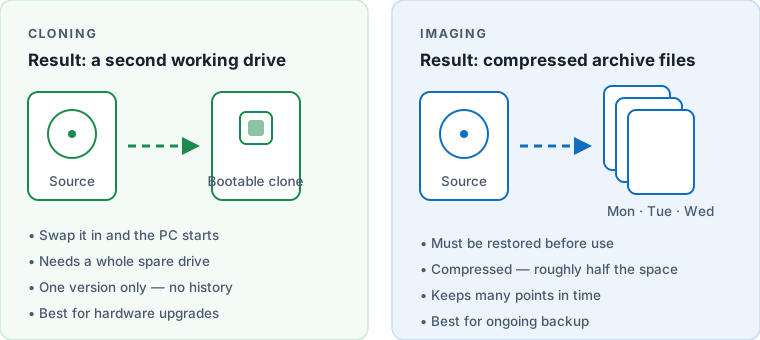
| Cloning | Imaging | |
|---|---|---|
| Result | A second bootable drive | One or more archive files |
| Storage needed | A whole spare drive, at least as big as the used data | Compressed, typically 40–60% of used data |
| Time to recover | Minutes — swap the drive | Longer — boot rescue media, restore, reboot |
| Multiple points in time | No — each clone replaces the last | Yes — keep daily, weekly, monthly versions |
| Restore a single file | Only by plugging the clone in | Yes — mount the image and browse it |
| Automation | Possible but rarely worth it | Scheduling and incremental backups are standard |
| Off-site copy | Awkward — you are moving hardware | Easy — copy the file anywhere |
| Best for | Hardware upgrades and replacing a dying drive | Ongoing protection against failure, mistakes and ransomware |
When cloning is the right answer
- Upgrading to an SSD. You want the new drive working today; you do not need seventeen historical versions of it. Clone, swap, done.
- A drive showing SMART warnings. Get the data onto healthy hardware in one operation, before the failing drive gets worse.
- Setting up identical machines. Clone one configured system to many, which is precisely what Clonezilla's multicast mode exists for.
- You want a cold spare. A clone sitting in a drawer can be swapped in during a failure with almost no downtime — though it is only as current as the day you made it.
When imaging is the right answer
- Routine backup. Nightly incremental images cost a fraction of the space and keep a history you can step back through.
- Recovering from your own mistakes. A clone made after you deleted the folder contains no folder. An image from Tuesday does.
- Ransomware. Versioned images stored offline are one of the few things that reliably defeat encryption attacks. A single clone, kept connected, gets encrypted along with everything else.
- Migrating to different hardware. Most imaging suites can inject drivers during restore, which makes moving to a new motherboard far more likely to work.
A middle path: image, then restore
You can accomplish a drive migration using imaging software alone: take a full image of the old drive to an external disk, install the new drive, boot the rescue media and restore. It takes two steps rather than one, and it is genuinely safer — if the restore fails you still have the image file and the original drive. This is the only route offered by Veeam Agent Free, and it is a reasonable trade for what that tool gives you at no cost.
Terminology you will run into
- Sector-by-sector clone — copies every sector including empty ones. Slow, but necessary for damaged filesystems or unusual partition layouts.
- Intelligent or used-sectors clone — copies only sectors that hold data. Much faster and required if the destination is smaller than the source.
- Full, differential and incremental — imaging terms. Full copies everything; differential copies changes since the last full; incremental copies changes since the last backup of any kind.
- Bare-metal restore — restoring an image onto an empty drive in a machine with no operating system, using bootable rescue media.
- Rescue or recovery media — the bootable USB stick a backup program creates so it can run when Windows cannot. Make one before you need it.
Questions
Is a clone a backup?
Only partly. It protects against the drive dying, but not against deleting a file, a bad update, or ransomware — because a clone has no history. Treat it as a spare part rather than as a backup.
Can I boot from a disk image?
Not directly. It has to be restored to a drive first. Some tools bridge the gap: Macrium's viBoot can start an image as a virtual machine, which is useful for checking the image is good.
Which uses less space?
Imaging, by a wide margin. Compression typically brings an image down to roughly half the used data, and incremental backups after the first one are far smaller again. A clone needs a whole physical drive.
If I only do one thing, which should it be?
Scheduled imaging to an external drive. It covers more failure modes than cloning does. Clone when you are physically replacing hardware, which for most people is once every few years.