Home › Guides › Clone HDD to SSD
How to clone an HDD to an SSD in Windows
A step-by-step walkthrough of migrating Windows from a hard drive to a solid-state drive, including what to do after the first boot.
Swapping a mechanical hard drive for an SSD is the single biggest speed improvement most computers will ever get, and cloning is what saves you from reinstalling Windows and every application on it. The process is not difficult, but it is unforgiving: the destination drive gets erased, and roughly a third of the problems people report afterwards trace back to something they skipped in the first ten minutes.
What you need
- The new SSD, with enough capacity for the used space on your current drive plus comfortable headroom. An SSD that is more than about 80% full slows down.
- A way to connect both drives at once. On a desktop, plug the SSD into a spare SATA port or M.2 slot. On a laptop with a single drive bay, you need a USB-to-SATA adapter or an external NVMe enclosure.
- Cloning software. Rescuezilla or Hasleo Disk Clone if you want free; your SSD maker's own utility if the new drive is a Samsung, WD, SanDisk or Crucial; Macrium Reflect if you are paying.
- A separate backup of your documents. Not optional.
The procedure
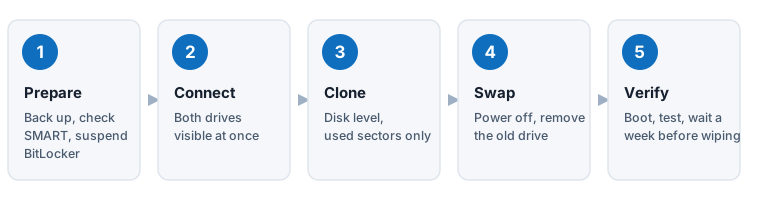
- Clean up and check the numbers Open Windows Settings and look at how much space is actually used on C:. Empty the Recycle Bin, run Disk Cleanup, and uninstall anything obviously dead. If used space is larger than the new SSD's capacity, stop here and read cloning to a smaller SSD before going further.
- Deal with BitLocker If your drive is encrypted — and on many modern Windows 11 machines it is, whether or not you switched it on — either suspend or fully decrypt BitLocker before cloning. Search for “Manage BitLocker” in the Start menu. Save your recovery key somewhere off the machine either way. Encrypted source drives are the most common cause of cloning tools failing halfway with an unhelpful error.
- Connect the SSD and confirm Windows sees it Open Disk Management (right-click Start → Disk Management). The new drive should appear, probably as unallocated space. You do not need to format or partition it — cloning will overwrite all of that — but you do need to note its disk number, size and model so you can identify it unambiguously later.
- Note which drive is which, carefully This is the step people rush and regret. Write down the model number and capacity of the source and of the destination. If both drives are the same size and model, label them physically or disconnect everything else. Drive letters are not reliable identification; a clone tool that shows you disk 0 and disk 1 is not telling you which is your Windows drive.
- Run the clone Launch your chosen tool, pick disk clone (not partition clone, unless you know why you want that), select the old drive as source and the new SSD as destination. If the tool offers “optimise for SSD”, “4K alignment” or “intelligent sector copy”, enable them. Then read the confirmation screen properly — it will name the drive about to be erased.
- Wait A few hundred gigabytes over a good connection takes roughly half an hour to two hours; over USB 2.0 or from an ageing hard drive it can take most of a day. Do not use the machine heavily while it runs, and do not let it sleep. On a laptop, keep it plugged in.
- Shut down and swap Power the machine off completely. If you are replacing the internal drive, physically swap it now. Leaving both drives connected is the second most common cause of post-clone boot confusion, because the firmware may pick the old one and you will conclude nothing happened.
- Boot and check the boot order Start up and enter the firmware setup (usually Del, F2, F10 or F12 during startup) to confirm the SSD is first in the boot order. If Windows starts and feels dramatically faster, the clone worked.
- Verify before you erase anything Log in, open a few applications, check that your documents, browser profiles and licensed software are all present. Run it as your daily machine for a week. Only then wipe the old drive.
- Tidy up the SSD
If the new drive is larger than the old one, you may have unallocated space at the end. Open Disk
Management, right-click the C: partition and choose Extend Volume to absorb it. Confirm that
TRIM is on by running
fsutil behavior query DisableDeleteNotifyin an admin command prompt — a result of 0 means TRIM is enabled, which is what you want. Turn off scheduled defragmentation for the SSD if Windows has not already done so automatically.
If it goes wrong
The great majority of failures fall into a handful of categories: the boot order was never changed, both drives are still connected, the source was BitLocker-encrypted, or the source had bad sectors the tool could not read past. Our boot troubleshooting checklist works through them in the order worth trying.
One reassuring thing about cloning: as long as you did not erase the original drive, you have not lost anything. Put the old drive back, boot from it, and try again with a different tool.
Cloning a laptop with only one drive bay
You have two options. The straightforward one is a USB-to-SATA adapter or NVMe enclosure: clone to the SSD while it sits outside the machine, then swap the drives. The alternative, if you have no adapter, is to take a full image to an external drive with something like Veeam Agent Free, physically install the SSD, and restore the image using the tool's rescue media. That route is slower but it leaves you with a backup file at the end, which a clone does not.
Questions
How long should cloning take?
Budget roughly 30 to 60 minutes per 250 GB of used data over SATA, and a good deal longer over USB or from a failing drive. Tools that copy only used blocks rather than the whole disk are considerably faster on a half-empty drive.
Do I need to format the new SSD first?
No. A disk clone rewrites the partition table and everything after it, so any formatting you do beforehand is discarded. You only need the drive to be visible to the system.
Will my Windows licence still be valid?
Yes. Changing the drive does not normally trigger reactivation, because Windows activation is tied to the motherboard and to your Microsoft account rather than the disk. Signing in with a Microsoft account beforehand makes any reactivation trivial if it ever does come up.
Can I clone while I am using the computer?
Windows-based tools use Volume Shadow Copy to clone a live system, so technically yes. It is still better to close everything and leave the machine alone — heavy disk activity during a clone slows it down and increases the chance of an inconsistent copy.
Should I clone or do a clean install?
Clone if your Windows installation is healthy and you have applications you do not want to set up again. Do a clean install if the system is already unstable, riddled with leftover software, or infected — cloning faithfully reproduces all of that on the new drive.